Mobile fiber optic router cannot connect
A mobile fiber optic router may fail to connect due to misconfigured settings, missing PPPoE credentials, faulty cables, or ISP-related issues.
Step 1: Check Physical Connections
Ensure that all cables are properly connected and undamaged. The fiber optic cable should be securely plugged into the modem, and the router should be connected to the modem via Ethernet if required. Avoid using damaged or frayed cables, and connect devices directly to a reliable power source rather than a surge protector if possible .
Step 2: Restart Devices
Power cycle both the fiber optic modem and the router. Unplug them from the power outlet, wait 30–60 seconds, plug in the modem first, wait a minute, then plug in the router. Wait for all indicator lights to stabilize before testing the connection .
Step 3: Verify Router Configuration
Many fiber optic connections require PPPoE credentials (username and password) to establish an internet connection. Check your ISP documentation or customer portal for these credentials. If you do not have them, contact your ISP to obtain the correct login information . Ensure the router is set to the correct connection type (PPPoE, Static IP, or Dynamic IP) as specified by your ISP .
Step 4: Test Direct Connection
Connect a computer directly to the fiber optic modem using an Ethernet cable. If the computer cannot access the internet, the issue may be with the ISP or modem rather than the router . This helps isolate whether the problem is with the router or the service itself.
Step 5: Check for ISP Outages
Confirm whether your ISP is experiencing outages or maintenance in your area. You can check their website, status page, or contact customer support . Sometimes, even with correct settings, connectivity will fail if the ISP service is temporarily down.
Step 6: Update Firmware and Reset Settings
Ensure your router firmware is up to date. If problems persist, consider resetting the router to factory settings and reconfiguring it with the correct credentials. Be aware that a reset will erase all previous configurations .
Step 7: Contact ISP Support
If all else fails, contact your ISP. They can verify whether your account is properly provisioned, provide missing PPPoE credentials, or troubleshoot modem/router compatibility issues . By following these steps—checking cables, restarting devices, verifying configuration, testing direct connections, and contacting your ISP—you can systematically identify and resolve the issue preventing your mobile fiber optic router from connecting to the internet.
 Industry
 Master Basic WiFi Troubleshooting with Globe At Home
Learn the basics of WiFi troubleshooting with these comprehensive steps from Globe At Home.
 Industry
 Failed Internet access through router
If the router can access the Internet normally, but the device (e.g. PC, laptop) cannot access the Internet when
 Industry
 How To Block Unknown WiFi Users on Huawei Router
Today in this video tutorial you will learn how to block someone unknown person who
 Industry
 Fiber ONT Troubleshooting
Don''t let optical network terminal (ONT) problems disrupt your fiber-optic experience. At BroadbandSearch, we
 Industry
 DIY Internet Troubleshooting: What to Do When Your Connection Fails
If you''re using fibre optics, ensure the fibre terminal is connected and the optical cable is intact. 2. Restart Your
 Industry
 Connect Devices to WiFi | Quantum Fiber
Learn how to connect devices to and share access with your Quantum Fiber WiFi network Whether you have 360 WiFi or a wireless
 Industry
 Fiber Network Troubleshooting – Common Issues & Fixes
When issues like signal loss, slow speeds, or intermittent connectivity arise, systematic troubleshooting is key. This
 Industry
 Troubleshoot Your GFiber Internet and Wi-Fi
Follow the steps in this article to find solutions for common internet and Wi-Fi problems. Still need help? Estimated time: 5-10
 Industry
 Laptop cannot find optical fibre network : r/HomeNetworking
We got a new optical fibre network installed recently, and it''s working as it should, all devices connect to it. All except my laptop
 Industry
 Sorry, there was a problem
Learn how to troubleshoot issues with your Nokia ONT XS-2426X-A router on T-Mobile Fiber with step-by-step instructions and tips.
 Industry
 Troubleshoot Your GFiber Internet and Wi-Fi
Your router connects your device to the internet. If it''s offline, in a bad spot, or misconfigured, it can cause connection issues. Try
 Industry
 How to Fix your Sound Bar If Optical Cable Not Working
Here is what you need to do if you don''t get any sound out of your sound bar using your
 Industry
 How to Connect Fiber Optic Cable to Router: A Step-by-Step Guide
However, setting up a fiber optic connection to your router can seem daunting if you''re unfamiliar with the process. In
 Industry
 Why won''t my devices connect to my new router?
Find troubleshooting tips to resolve connectivity issues with your new router and ensure seamless device connections.
 Industry
 Some devices wired connected to the router cannot access the
Learn about ''Some devices wired connected to the router cannot access the Internet''. Find all usage guide, troubleshooting tips and
 Industry
 How to Connect a Fiber Optic Cable to a Router
Connect fiber internet correctly. Learn the essential hardware bridge and sequential steps needed to link the optical
 Industry
 Unable to Connect Router to Fiber Optic Cable Modem
Despite multiple attempts, the Archer AX6000 v1.0 is unable to connect to the modem. The blue light on top of the
 Industry
 How is Fiber Internet Installed? Everything You Need to
Explore how fiber optic internet is installed in your home, with step-by-step details on cables,
 Industry
 Customer Support | T-Mobile Fiber
Learn more about troubleshooting and managing your T-Mobile Fiber network.
 Industry
 How to Connect Your Phone to a Fibre Router
Learn how to connect your phone to a fibre router with step-by-step setup, troubleshooting tips, and Wi-Fi optimisation
 Industry
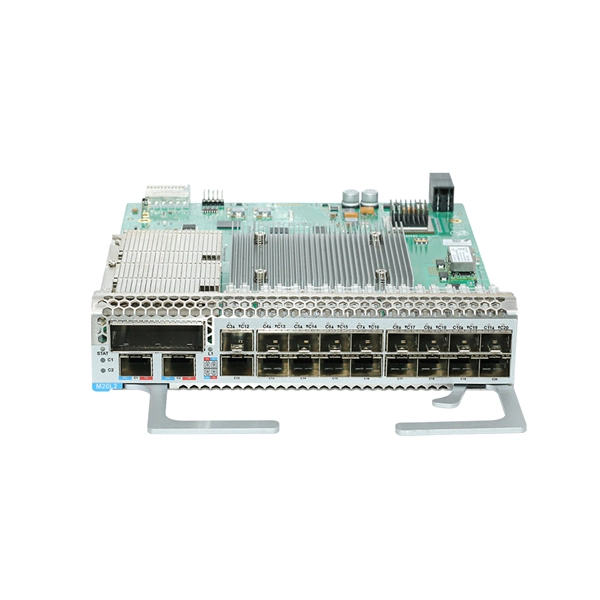
 How to Connect Fiber Optic Cable to Router: A Step-by-Step Guide
Fiber optic internet delivers blazing-fast speeds and reliable connectivity, making it a top choice for modern homes
 Industry
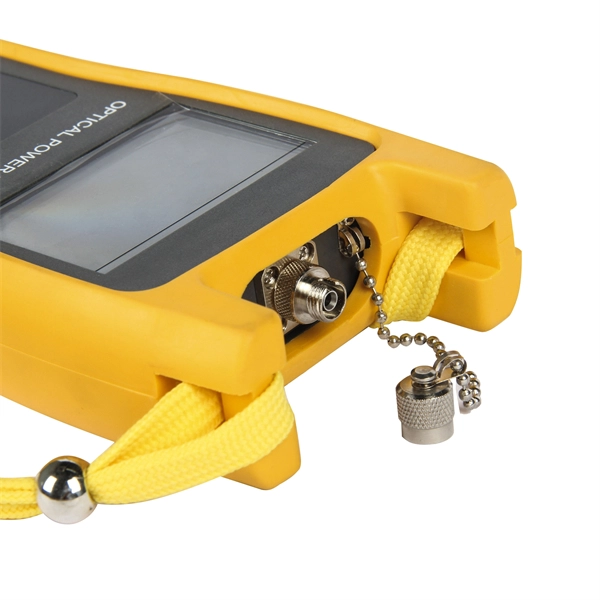
 My Router is Not Connecting to the Internet: 10 Simple Fixes
Spectrum Internet is not connecting with the router: It could be due to a glitch in the router that can be fixed by
 Industry
 TP-Link Router Not Connecting to Internet?
Is your TP-Link router not connecting to the internet? Learn how to troubleshoot and fix the issue by checking your IP
 Industry
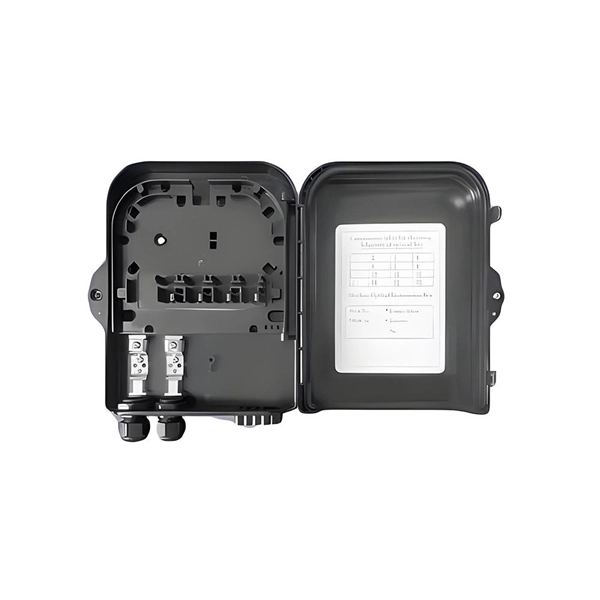
 How to Connect Fiber Optic Cable to Router: Top 5
Learn how to connect fiber optic cable to router with our step-by-step guide. Optimize your
 Industry
 64-bit Windows pcs do not connect to my new full fibre broadband
All three machines worked on my old copper broadband connection. Once I had installed a new full-fibre connection
 Industry
 The Ultimate Fiber Troubleshooting Bible for Beginners 2025
Solve fiber troubleshooting issues fast with step-by-step tips for beginners. Keep your fiber optic network reliable and
 Industry
 Unable to Connect Router to Fiber Optic Cable Modem
The router cannot connect to the Hitron modem, and neither of my machines can connect to the Internet directly via
 Industry
 Fiber Internet: Computer plugged into my router can''t connect to internet
Wait for your computer to connect to the router again. Can you connect to the internet now? Yes No The problem seems to be with
 Industry
 Broadband Support and FAQs
Need broadband support? We''ve got you covered. Check out our broadband FAQs on installation appointments, usage, setup,